
Published
How to use Zotero comes down to five habits: install it, add the browser Connector, save papers with one click, sort them into collections, and cite from inside Word. This guide walks through each one in plain language. No jargon, no setup rabbit holes. Set aside about 20 minutes and you will have a working reference library by the end.
In Simple Words
Zotero is a free program that remembers every paper you read. You click a button in your browser and the paper is saved with its authors, title and journal. Later, you click another button in Word and Zotero writes your citations and your reference list for you, in whatever style the journal wants.

What Zotero Does and Why Researchers Use It
A reference manager does three jobs. It stores the papers you collect, it keeps their details correct, and it formats citations for you. Zotero does all three and costs nothing to start. The app runs on Windows, Mac and Linux, and the main features are free.
The payoff shows up at submission time. Journals ask for different styles: APA 7, Vancouver, AMA, Harvard and many house styles. Typing a reference list by hand takes hours and breeds small errors. With Zotero you switch the style from a menu and the whole list reformats in seconds.
Step 1: Install Zotero and Make a Free Account
- Go to zotero.org/download and download the version for your computer.
- Run the installer. Say yes to the Word plugin if it asks. It is what adds the Zotero tab to Word later.
- Create a free account at zotero.org. The account is optional for using the app, but you need it to sync your library across devices and to keep a backup in the cloud.
- In Zotero, open Settings and sign in under Sync.
The current major version is Zotero 10, first released in August 2026. If your copy looks different from older tutorials, that is why. Everything in this guide works the same way.
Step 2: Add the Zotero Connector to Your Browser
The Connector is a small button that sits in your browser toolbar. It is the fastest way to build your library.
- Install the Connector for Chrome, Firefox, Edge or Safari from the Zotero download page.
- Keep the Zotero app open in the background while you browse.
- Open any article page, for example a paper on PubMed or a journal site.
- Click the Connector button. The icon changes to match what it found, such as a journal article or a book.
Zotero saves the title, authors, journal, year and DOI. When the paper has an open or accessible PDF, it saves the PDF as well. Check the new entry once. If a field is missing, fill it in now, because that field will be missing in your reference list too.
Step 3: Save Papers by DOI, PMID or ISBN
Sometimes you have only a reference from another paper. You do not need to find the web page.
- In Zotero, click the magic wand button (Add Item by Identifier).
- Paste a DOI, a PubMed ID (PMID) or a book ISBN.
- Press Enter. Zotero fetches the details and adds the entry.
This is also the easiest way to rebuild a reference list from an old manuscript. Paste the DOIs one after another and you are done. If you search PubMed first, the guide to searching beyond PubMed helps you build better queries before you save anything.
Step 4: Organise Your Library With Collections and Tags
A collection works like a folder, with one big advantage: the same paper can sit in several collections at once. A paper on blood pressure can live in both “Introduction” and “Methods” without being copied.
- One collection per project. Name it after the manuscript, thesis or review.
- Sub-collections for sections. Introduction, Methods, Discussion and “To read” cover most needs.
- Tags for quick filters. Use a few short tags such as “RCT”, “review” or “must cite”. Too many tags become noise.
- Notes on the paper. Add a one-line takeaway under each paper. You will thank yourself in three months.
Zotero 10 made this part easier. You can now select several collections at once, edit many items in one batch, and undo or redo changes, so a tidy-up no longer feels risky.
Step 5: Cite in Word and Build the Bibliography
Open Word. You will see a Zotero tab on the ribbon.
- Click Document Preferences once and pick your citation style, for example Vancouver or APA 7.
- Put the cursor where the citation goes and click Add/Edit Citation.
- Type an author, title or year in the search bar and pick the paper. Press Enter.
- When the writing is finished, put the cursor at the end and click Add/Edit Bibliography.
- Changed your mind about the style? Open Document Preferences, pick another style, and click Refresh.
Zotero also works in LibreOffice and Google Docs. The buttons are named the same way.
Four Mistakes That Cost Beginners Time
- Editing the bibliography by hand. The next refresh overwrites your changes. Fix the entry inside Zotero instead.
- Trusting every imported record. Websites sometimes give wrong capitalisation or a missing page range. Skim each new item.
- Naming the author twice. A sentence like “Smith found that… (Smith, 2020)” repeats the name. Reword the sentence so the citation sits in brackets at the end, rather than hiding the author with the Suppress Author option.
- Skipping the backup. Sync keeps a copy online, but you should also export the library now and then (File, Export Library).
Syncing and Storage: What Is Free and What Is Not
Syncing your reference data, meaning titles, authors, notes and tags, is free. Only the PDF files count against storage. The Zotero storage plans at the time of writing are:
| Plan | File storage | Price per year |
|---|---|---|
| Free | 300 MB | $0 |
| 2 GB | 2 GB | $20 |
| 6 GB | 6 GB | $60 |
| Unlimited | No limit | $120 |
Most beginners stay on the free plan for months. Check the current prices on the Zotero storage page before you pay.
New in Zotero 10: Features Worth Trying
- Advanced search inside the main window. Build a search without opening a separate box.
- Reading Mode for PDFs. A cleaner view for reading papers inside Zotero.
- Read Aloud. Zotero reads a paper to you while you commute or rest your eyes.
- Citation preview. See how a reference will look before you insert it.
- Undo and redo. Mistakes in the library are no longer permanent.
Using Zotero for a Systematic Review? Read This First
Zotero is excellent for everyday citing. For a systematic review, where you merge thousands of search results, one limit matters: removing duplicates. McKeown and Mir compared several tools on a set of 3,130 references. Careful manual work found 1,892 unique references and 1,238 duplicates. Zotero’s default duplicate check removed 640 of those duplicates, which left 2,471 references that still needed sorting by hand.
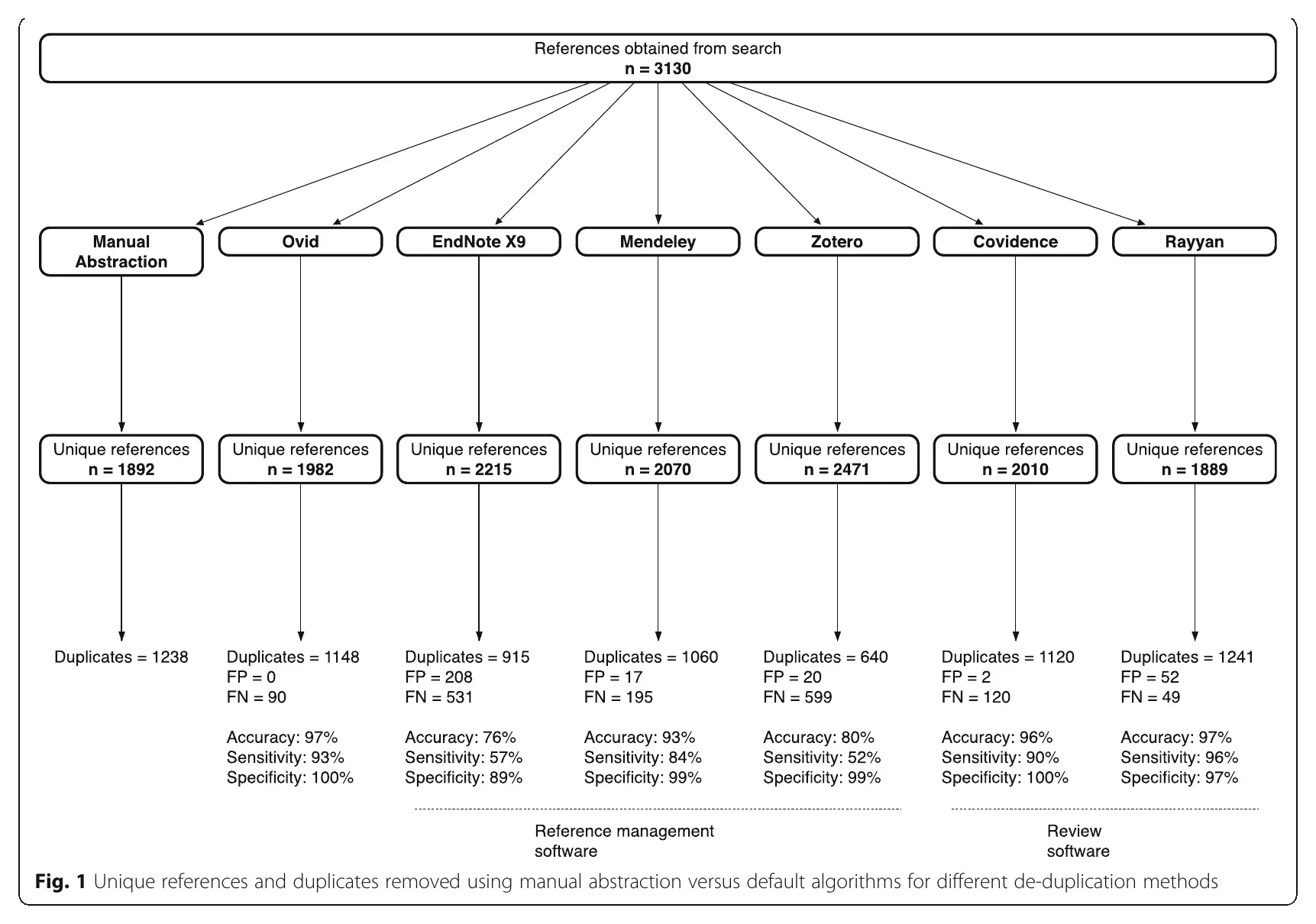
In plain terms, Zotero almost never deleted a record that was not a duplicate (specificity 99%, 20 wrongly removed), but it missed many true duplicates (599). That is the safe direction for an error. It does mean you must finish the job yourself, or run the results through a dedicated screening tool first. For a step-by-step approach in another program, see Bramer and colleagues on de-duplication in EndNote. When your clean count is ready, the PRISMA flow chart guide shows where each number goes, and writing meta-analyses covers what comes next.
Zotero or Something Else?
Zotero is a strong first choice because it is free, open and easy to leave if you change your mind, since you can export your library. If your university already gives you EndNote, or a co-author insists on Mendeley, our EndNote vs Mendeley comparison covers the trade-offs. Pick one tool per project and stay with it.
Frequently Asked Questions
Is Zotero really free?
Yes. The app, the Connector and the Word plugin are free. You pay only if you need more than 300 MB of file storage in the cloud.
Can I use Zotero with Word and Google Docs?
Yes. Zotero has plugins for Word, LibreOffice and Google Docs, and the citation buttons work the same way in each.
How do I move my old references into Zotero?
Use File, Import for a library file exported from EndNote or Mendeley, or paste a list of DOIs into the Add Item by Identifier box.
Why does my bibliography show a wrong detail?
The record in your library is wrong or incomplete. Open the item in Zotero, correct the field, then click Refresh in Word.
Free Research Tools from Editverse
- GraphPro: build publication-ready charts, 25 types, with built-in t-test, ANOVA, correlation, and chi-square p-values. Free, no signup.
- StatPro: free statistical calculators and a test-selector tool covering group comparisons, categorical outcomes, time-to-event analysis, and diagnostic accuracy.
- Flowchart Pro: generate PRISMA 2020, PRISMA-ScR, CONSORT, STROBE, STARD, MOOSE, and ARRIVE flow diagrams directly in your browser.
Professional Support for Your Literature and Reference List
Zotero keeps your references tidy, but it cannot judge whether the right papers are in the library or whether each entry is accurate. Our editors can take over the parts that are slow or easy to get wrong.
Literature Review Support
$500
Search strategy, literature matrix, gap analysis and annotated bibliography. 7-10 business days.
Advanced Editing
$550
Substantive editing, language polishing, citation-style editing and reference list verification. 7-10 business days.
Essential Editing
$350
Copyediting, proofreading and journal formatting for a manuscript that is structurally sound. 5-7 business days.
Not sure which fits? Contact us and we will point you to the right package.
Conclusion
You now know how to use Zotero from first install to a finished bibliography. Install it, add the Connector, save papers by click or by DOI, keep one collection per project, and let Word build the citations. Start with a single project today. Ten papers in a collection is enough to feel the time it saves.
References
- McKeown S, Mir ZM. Considerations for conducting systematic reviews: evaluating the performance of different methods for de-duplicating references. Syst Rev. 2021;10(1). doi:10.1186/s13643-021-01583-y
- Bramer WM, Giustini D, de Jonge GB, Holland L, Bekhuis T. De-duplication of database search results for systematic reviews in EndNote. J Med Libr Assoc. 2016;104(3):240-243. doi:10.3163/1536-5050.104.3.014
- Zotero. Download, documentation and storage plans. zotero.org. Accessed 20 November 2026.